AZ
Ten years of iOS privacy protection plugins
AZ TUTORIALS · Sileo

Sileo · Uninstall a package

Uninstalling also uses the queue: choose Uninstall, then confirm in the queue.

AZ tutorialsRead on siteUpdated 2026-11-01

Step by step

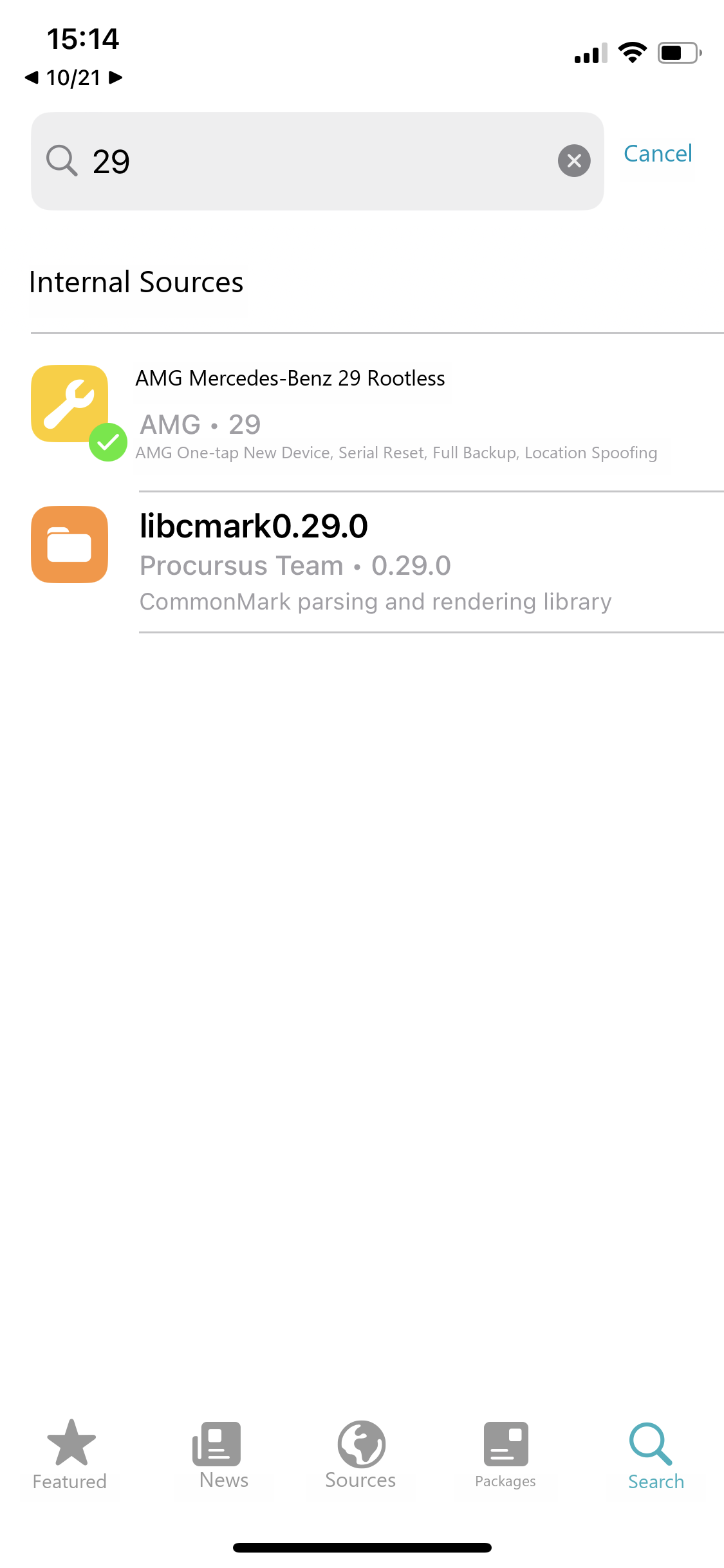
Sileo · Search — English guide illustration
1Tap Search at the bottom and type the product name or a keyword (for example 29). Open the installed package — its icon carries a green checkmark.
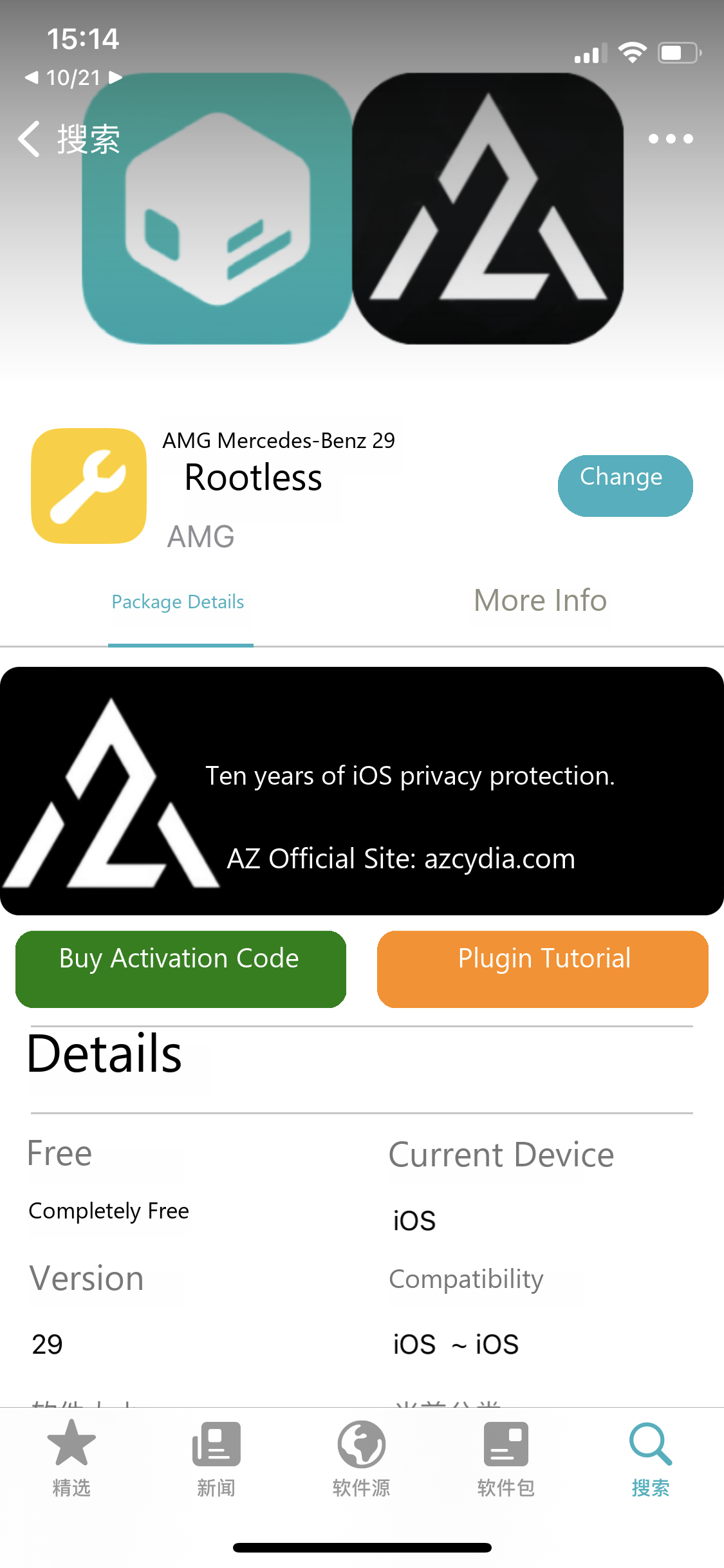
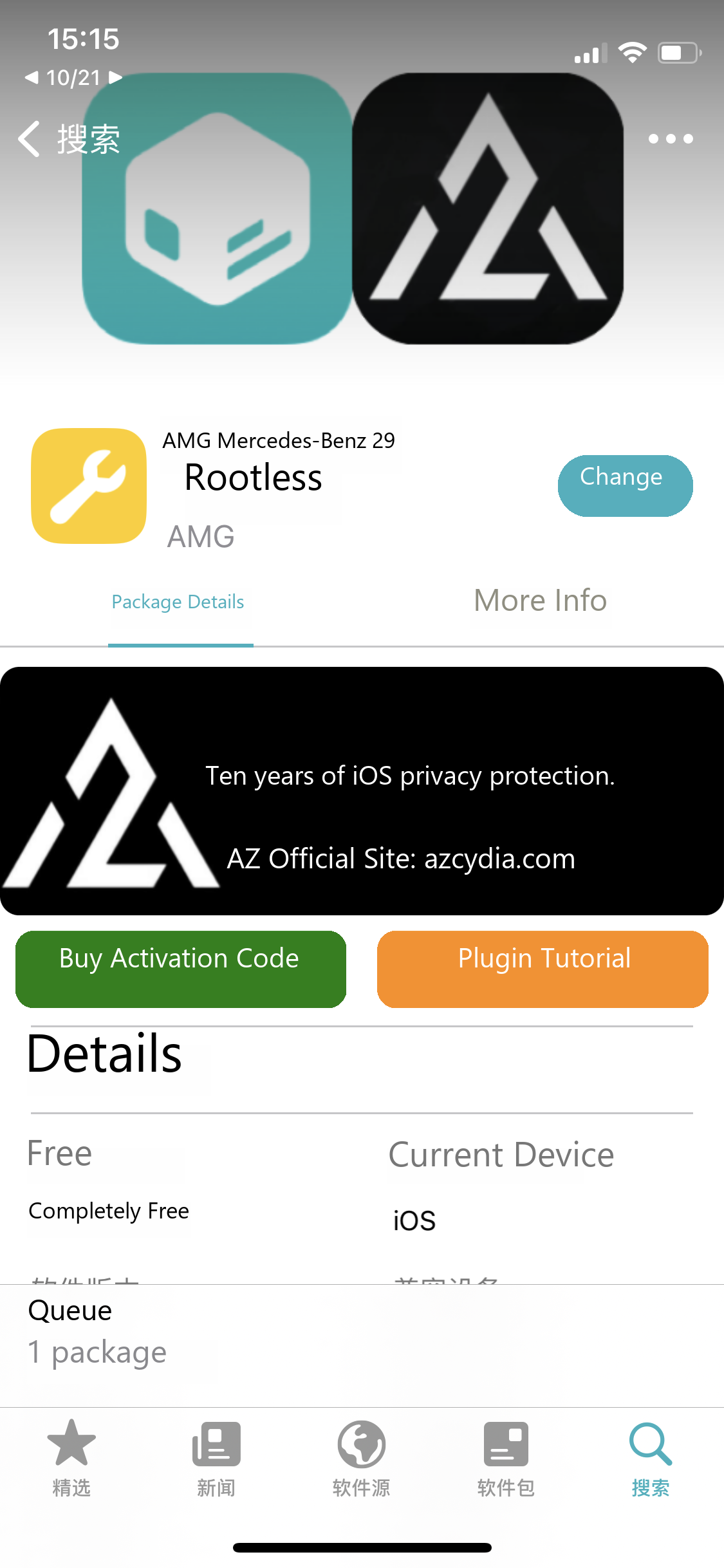
AMG · Installed — English guide illustration
2On the details page of the installed package, tap Modify on the right.
Modify package — English guide illustration
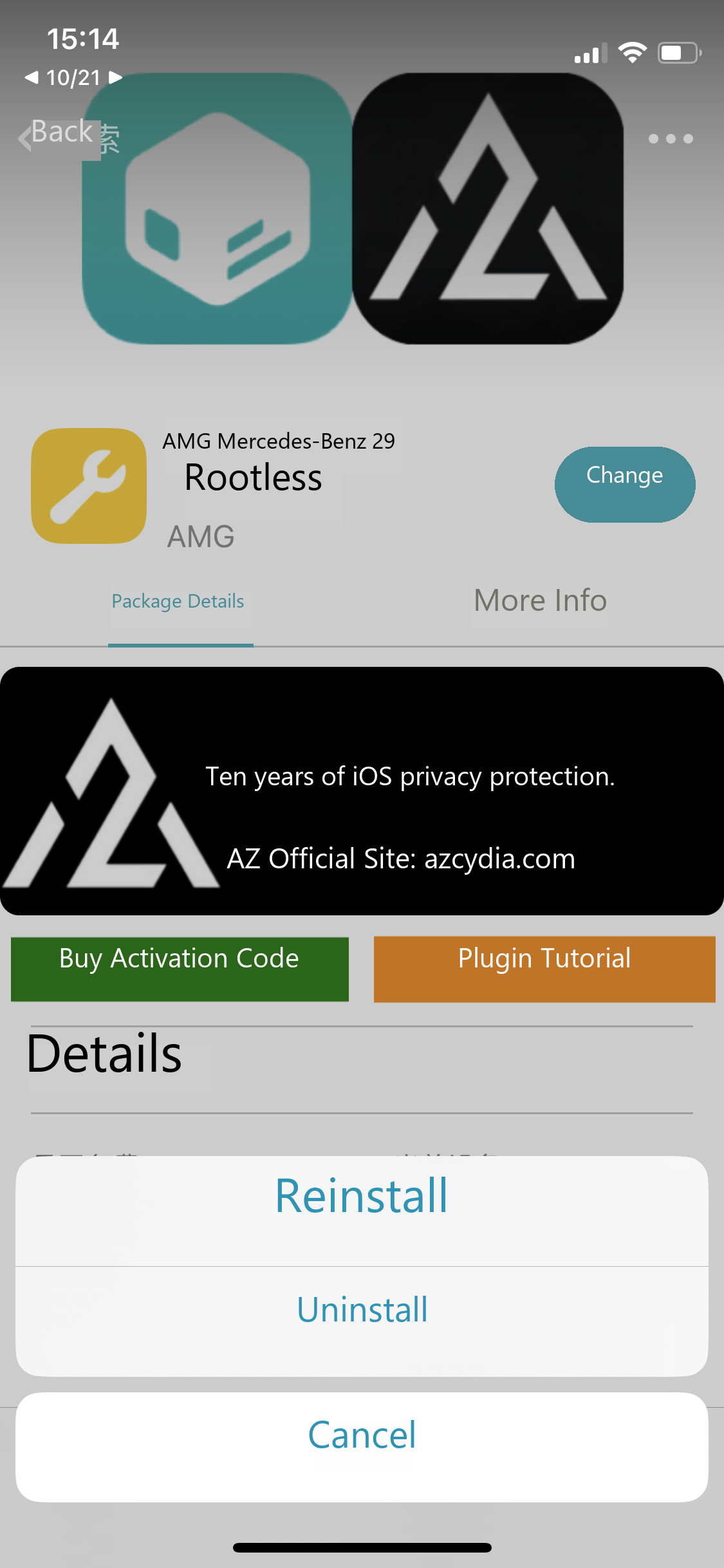
3In the menu that appears, choose Remove.
Removal queued — English guide illustration
4The button changes to Queue. Tap it to open the removal queue.
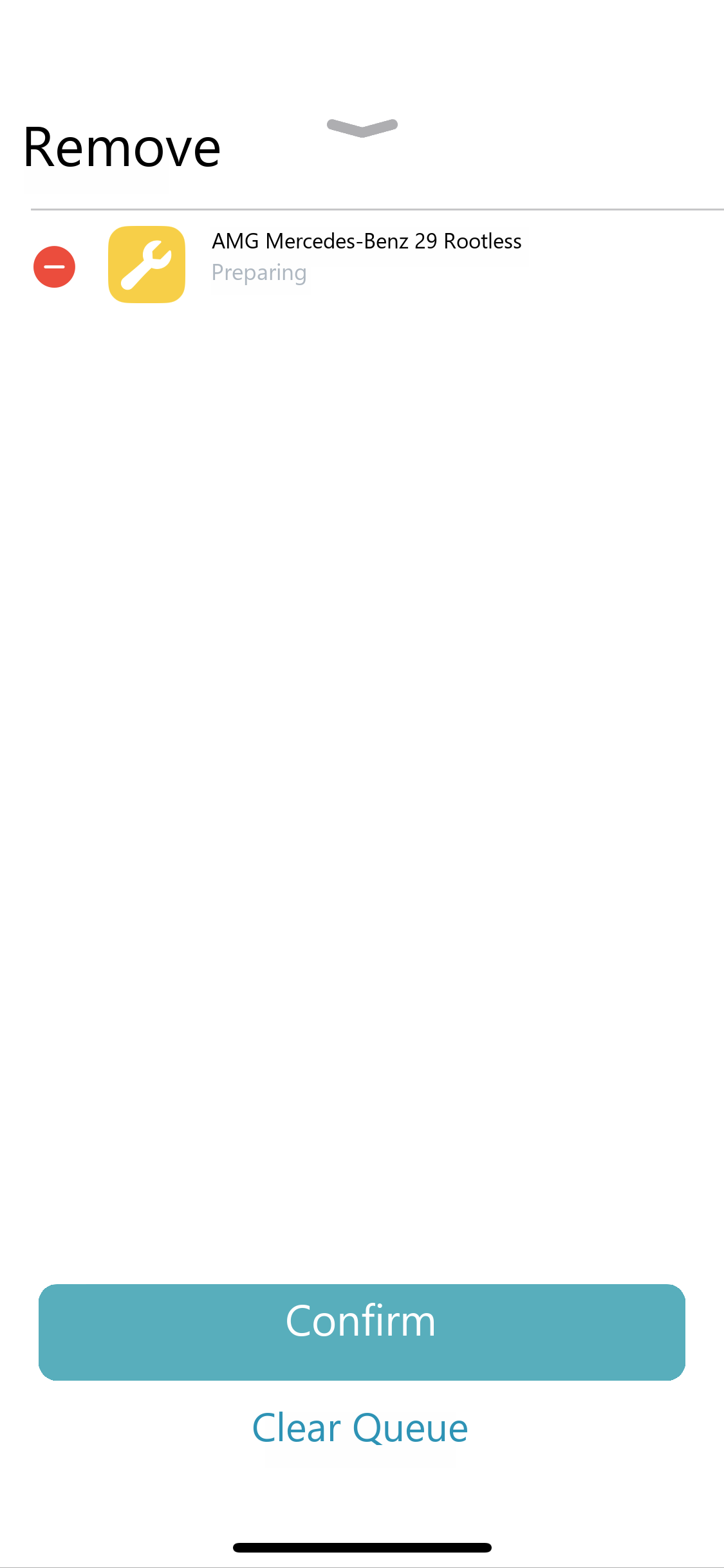
Remove package — English guide illustration
5Check the package name in the removal queue, tap Confirm, and wait for the removal to finish.
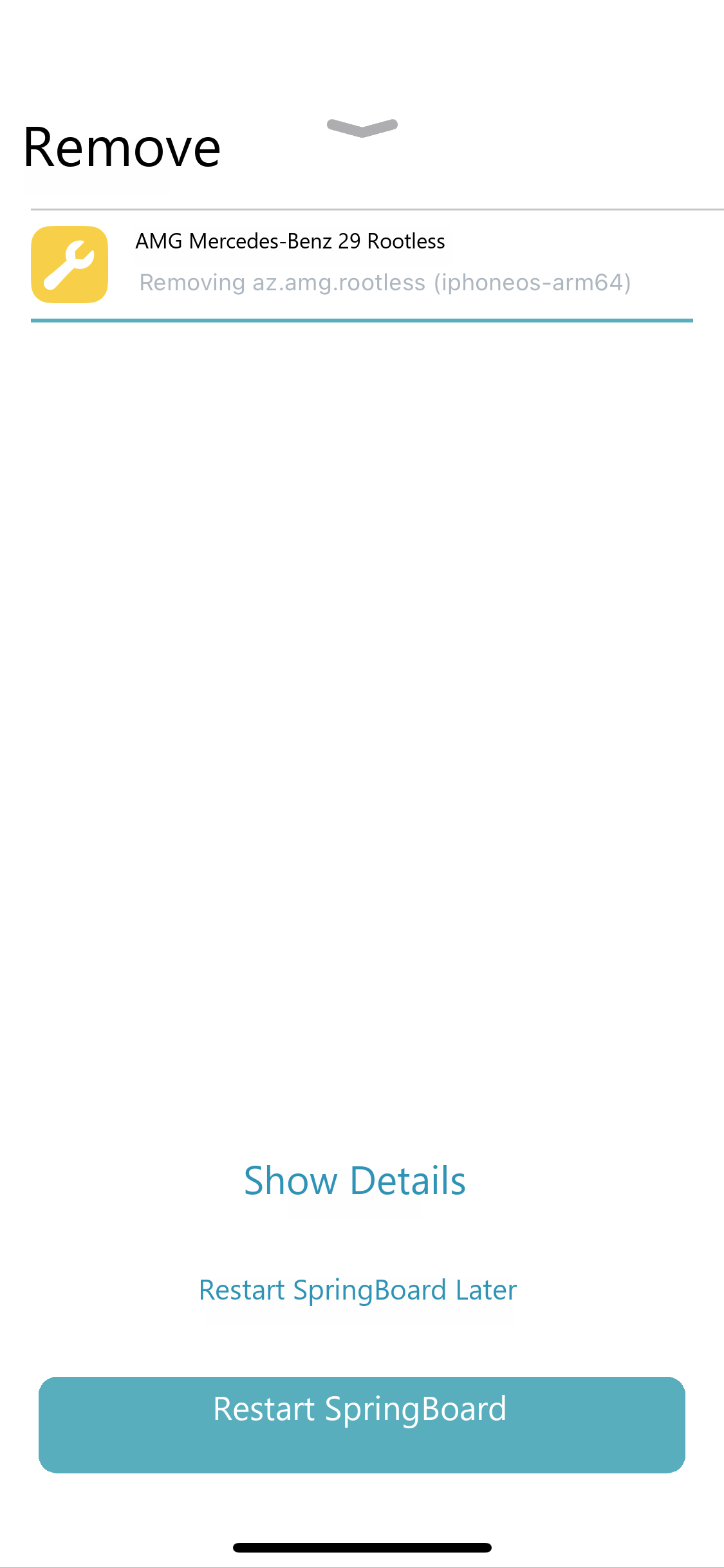
Removal complete — English guide illustration
6When removal completes, tap Restart SpringBoard, then confirm the package is gone.

Tips

  1. Uninstalling does not delete backups stored inside the app. See each product's guide for the backup path.
  2. If you only want to repair a broken install, choose "Reinstall" from the Modify menu instead of removing it first.

Next: Troubleshooting

Note

The interface and supported systems may change with updates. Back up important data before cleaning, resetting or deleting anything.